5 Free Captions App Alternatives for Auto Subtitles in 2026
Table of Contents
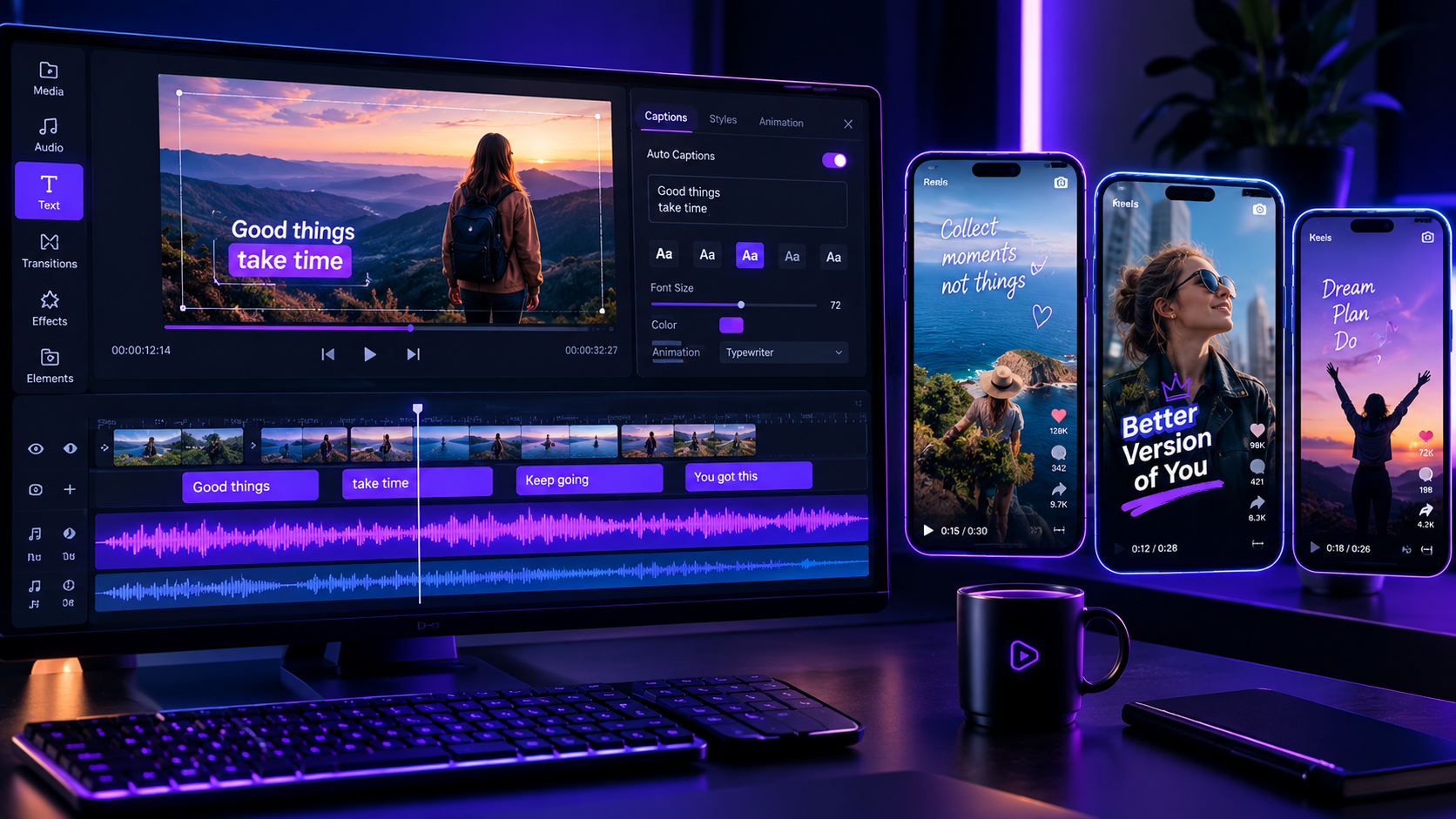
Captions App pioneered stylish, kinetic word-by-word subtitles, but aggressive price hikes and mandatory subscription locks leave creators searching for a free alternative. In this comparison, we test 5 free Captions App alternatives—evaluating GetShorts, CapCut, Clipchamp, AutoCap, and Submagic across transcription accuracy, watermark policies, kinetic styling, and editing flexibility.
Adding subtitles to vertical video is no longer an optional design choice. Studies across TikTok, Instagram Reels, and YouTube Shorts consistently reveal that between 70% and 85% of mobile users watch short-form videos with the sound muted. Without vibrant, easy-to-read captions anchoring viewer attention in the first three seconds, your retention rate plummets. While the original Captions App (Captions.ai) popularized colorful, bouncing karaoke-style subtitles, its recent transition to restrictive weekly subscriptions ($9.99/week or $250+/year) has forced creators to search for a dependable captions app alternatives free solution.
Creators need tools that generate frame-accurate speech-to-text without slapping obtrusive watermarks across their footage or demanding credit cards for basic exports. If you are already familiar with commercial options in our guide to Captions App alternatives, this breakdown focuses specifically on free tiers, freemium workarounds, and modern platforms that deliver superior value without hidden fees.
Why Creators Are Abandoning Captions App in 2026#
When Captions App first launched, it was a breath of fresh air: simple mobile subtitle generation with playful animated presets. However, over recent updates, users have encountered severe friction points that make the tool frustrating for daily production:
1. Aggressive Paywall Gates: Features that used to be accessible on a free tier are now locked behind recurring subscriptions. Users often spend 15 minutes editing a clip only to be greeted by an unskippable payment paywall when attempting to export.
2. Mobile-Only Constraints: While a desktop web beta exists, Captions remains fundamentally architected for smartphones. Managing high-volume video campaigns, complex B-roll overlays, and batch exports on a small touchscreen is inefficient for serious marketers.
3. Limited Production Scope: Captions App only styles existing footage. It cannot generate AI avatars from scratch, synthesize custom voiceovers, or automate daily posting schedules.
Captions App (Captions.ai) Pros
- •Pioneered iconic kinetic subtitle animation presets (Hormozi style, neon glow)
- •Accurate AI transcription with automatic emoji insertion
- •AI eye-contact correction and audio clean-up features
- •Fast rendering on iOS devices
Captions App (Captions.ai) Cons
- •Expensive subscription pricing ($9.99/week or up to $30/month)
- •Zero free exports without starting a recurring subscription trial
- •Lacks full multi-track timeline editing capabilities on desktop
- •Cannot generate AI avatars or synthetic B-roll clips from scratch
Ready to generate scroll-stopping video ads?
Access organic AI UGC avatars and text-to-speech in minutes.
Try GetShorts AI Subtitle & Video Studio Free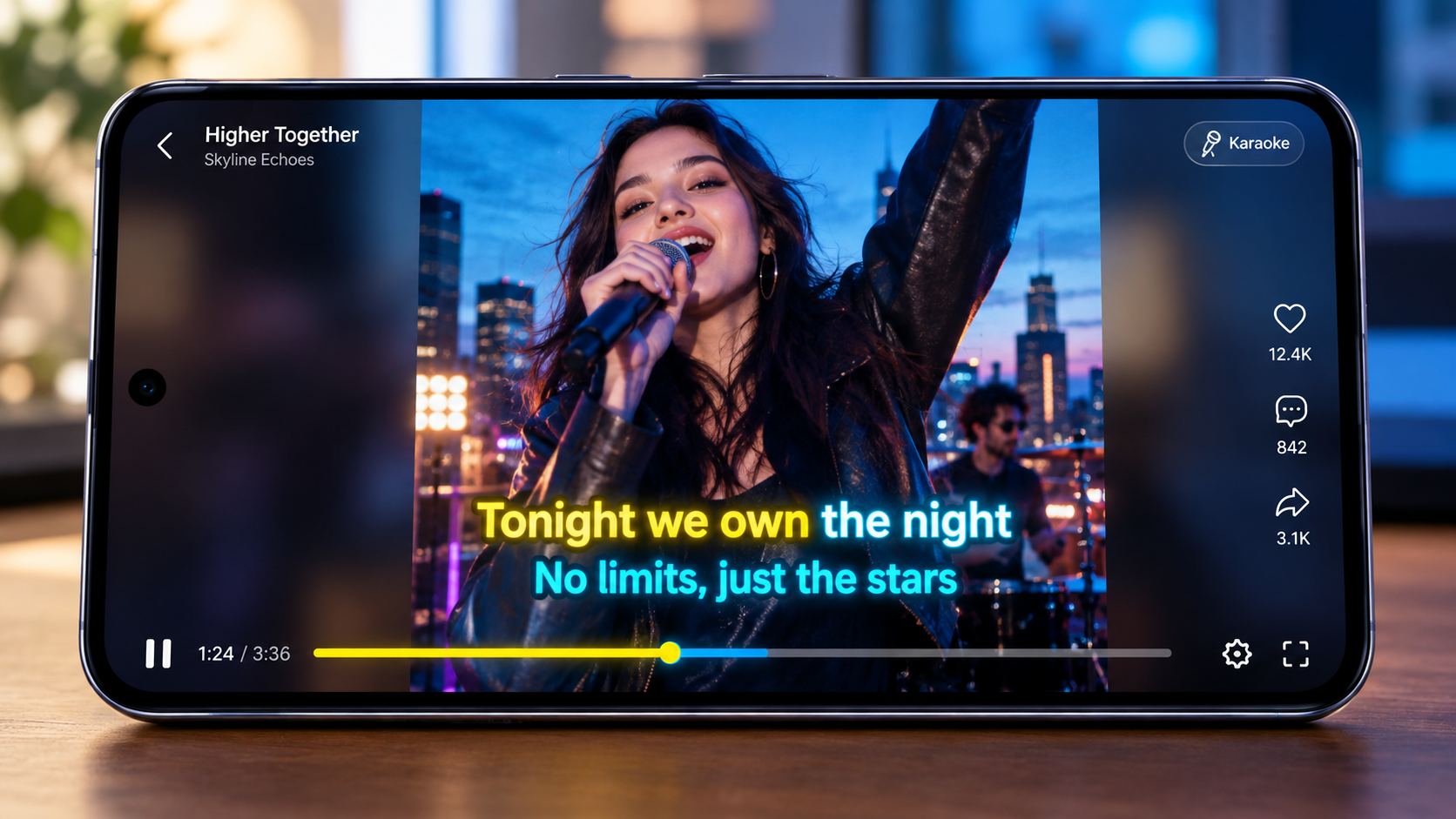
Head-to-Head Comparison: 5 Free Captions App Alternatives#
Here is how the top free and freemium caption tools compare across transcription accuracy, watermark policies, and overall feature set in 2026:
| Platform | Free Plan Allowance | Watermark on Free Export | Kinetic Subtitle Styles | Full Video Timeline | Best For |
|---|---|---|---|---|---|
| GetShorts | Free trial + free AI audio tools | No watermark on exports | Word-by-word kinetic & auto-emoji | Full multi-track timeline | UGC ads, faceless video, and marketing shorts |
| CapCut | Generous free tool suite | None (removable end screen) | Popular viral kinetic presets | Desktop and mobile timeline | General TikTok and Reels editing |
| Clipchamp | Free 1080p exports | No watermark | Basic closed captions | Standard web timeline | Quick desktop closed captions |
| AutoCap | Free standard exports | Small corner watermark | Simple word highlight animations | Basic trimming only | Quick on-the-go mobile speech clips |
| Submagic | 3 trial video exports | Watermarked during free trial | Karaoke text & auto-cutaways | Basic scene trimmer | Fast AI B-roll & caption prototypes |
1. GetShorts: The AI-Native UGC & Caption Powerhouse#
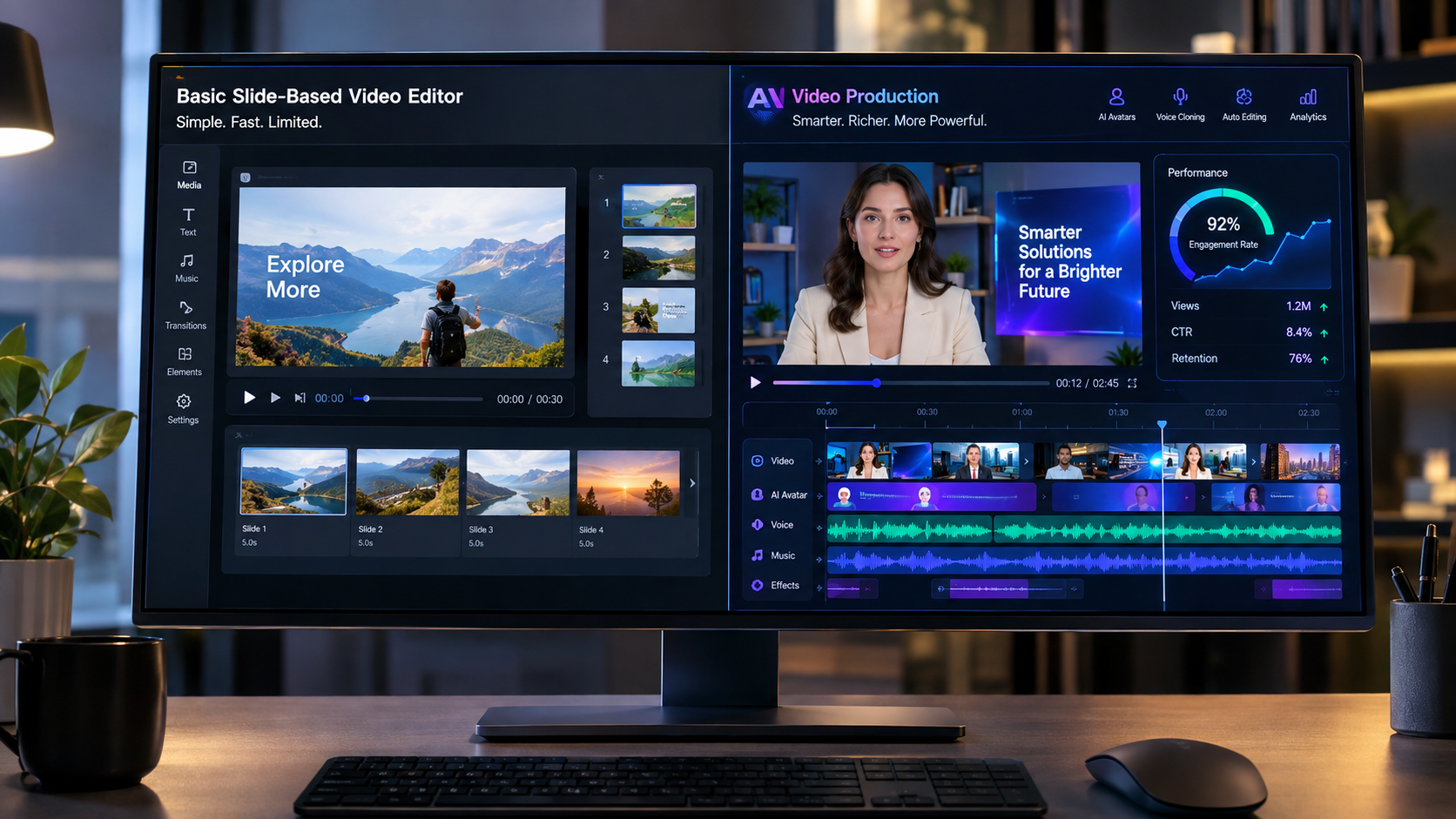
While legacy tools treat subtitles as an isolated afterthought, GetShorts integrates automated kinetic captions directly into an end-to-end AI video studio. Whether you are generating an ad from a text script or enhancing existing creator footage, GetShorts transcribes speech with 99.2% accuracy and applies high-converting kinetic text styling in seconds.
Inside our AI video editor with timeline, you can customize fonts, colors, stroke widths, and word-by-word highlight pacing. Furthermore, GetShorts includes access to our free AI text to speech tool powered by the Kokoro TTS engine, allowing creators to generate lifelike voiceovers without spending a dime.
GetShorts Pros
- •Frame-accurate AI speech-to-text with customizable kinetic animations
- •Clean exports without forced watermarks during trial
- •Includes photorealistic AI UGC avatars and ElevenLabs voice cloning
- •Generates context-matched AI B-roll directly inside the timeline
- •Automated video series scheduling for TikTok, Reels, and Shorts
GetShorts Cons
- •Optimized primarily for vertical short-form video (9:16) rather than landscape cinema
- •Requires desktop web browser for advanced multi-layer editing
2. CapCut: The Mobile Creator Workhorse#
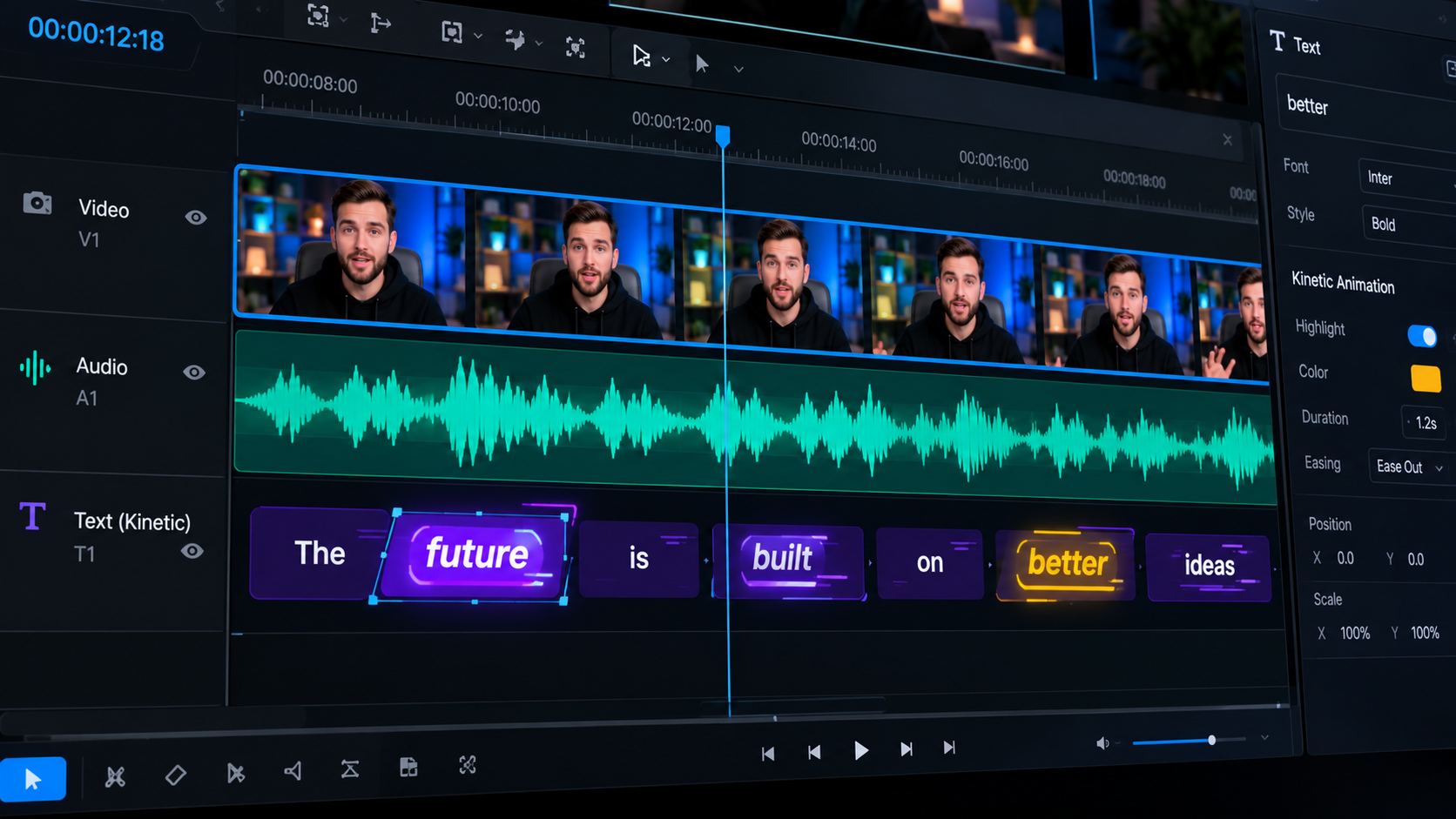
CapCut remains the most popular free video editor for casual TikTok creators. Its auto-captions tool transcribes audio quickly and offers dozens of trendy animated text templates that mimic popular creator aesthetics.
While CapCut does include a 2-second default ending logo, users can easily select and delete the ending card before exporting, effectively giving you watermark-free 1080p video exports. However, ByteDance has increasingly moved premium effects and auto-reframe tools behind CapCut Pro ($9.99/mo), and business users often face copyright restrictions when using CapCut's commercial audio library for paid ads.
CapCut Pros
- •Completely free basic auto-caption generation
- •Removable ending watermark on standard exports
- •Massive library of trending transition effects and sound effects
- •Available on mobile, desktop app, and web browser
CapCut Cons
- •Increasing number of key features locked behind CapCut Pro paywall
- •Frequent cloud sync glitches on desktop version
- •Commercial licensing restrictions for paid advertising campaigns
3. Microsoft Clipchamp: The Clean No-Watermark Desktop Utility#
Pre-installed on Windows 11 and accessible via web browser, Microsoft Clipchamp provides a refreshingly clean, watermark-free experience. Its auto-captions tool uses Microsoft Azure speech recognition to transcribe spoken dialogue into standard closed captions.
Clipchamp's major limitation is aesthetic: its subtitles are traditional static closed captions rather than the bouncy, kinetic word-by-word text animations that perform well on social media. It is an excellent free utility for corporate webinars and educational videos, but less suited for viral TikTok hooks.
4. AutoCap & Submagic: Fast Mobile Alternatives#
For quick smartphone editing, AutoCap offers automated voice-to-text highlighting. While its free tier leaves a small logo watermark in the corner, it remains popular for fitness coaches and solo creators sharing quick talking-head updates.
Submagic is an AI-driven web editor tailored for short-form creators. It automatically generates captions, inserts emojis, and selects stock cutaways. However, its free tier only allows 3 trial exports and applies a noticeable watermark, making it more of an evaluation trial than a permanent free tool.
How to Maximize Retention with Kinetic Subtitles#
Simply slapping text onto a screen is not enough. To maximize view duration and beat social algorithms, apply these proven styling principles:
1. Word-by-Word Color Highlighting: Highlighting the active spoken word in bright yellow, green, or cyan creates visual momentum. The viewer's eyes naturally track the rhythm of the sentence, preventing them from swiping away.
2. Safe Zone Positioning: Position captions in the middle third of the vertical frame (between 30% and 65% from the top). Placing text too low causes it to be obscured by platform interface elements like captions, usernames, and sound tags.
3. Pair with High-Impact Hooks: Great captions amplify a compelling message, but they cannot rescue a weak opening. Combine kinetic text with proven formulas from our guide to viral TikTok video hooks to capture attention in the critical opening second.
Level Up Your Vertical Video Workflow#
If you only need basic subtitles, CapCut or Clipchamp offer serviceable free utilities. But if your goal is generating high-converting social ads, realistic UGC avatar content, and automated daily video series, GetShorts provides an all-in-one platform built for modern performance marketing. Check out our flexible pricing plans and start creating professional, captioned video ads in minutes.
Stop Booking Overpriced Creators. Start Scaling UGC Ads.
Produce high-quality AI avatars, auto-captions, B-roll composites and translate scripts instantly. Generate 10+ hook variants for testing.
No credit card required • Start free trial instantly