How to Automate UGC Video Creation With Auto Mode
Table of Contents
Most people waste hours trying to figure out how to make short-form videos that actually work. You need to write the scripts, plan the scenes, record the voiceovers, and source the visuals. Then, somehow, it all has to come together in under a minute. The sheer number of creative decisions never stops, and it burns creators and marketers out incredibly fast.
But what if you didn't have to make all those decisions? What if you could just tell an AI what you want, and it builds the entire video for you? That is exactly why we built Auto Mode (powered by our Video Chat Agent) into the AI UGC generator.
In this tutorial, we are going to break down exactly how we used Auto Mode to create a highly dynamic, 7-scene, 30-second product demo video. No editing software. No hiring freelancers. No spending your weekend learning Premiere. Just fast, consistent output.
Ready to generate scroll-stopping video ads?
Access organic AI UGC avatars and text-to-speech in minutes.
Try UGC Easy Mode FreeStep 1: Define Your Concept for the Video Chat Agent#
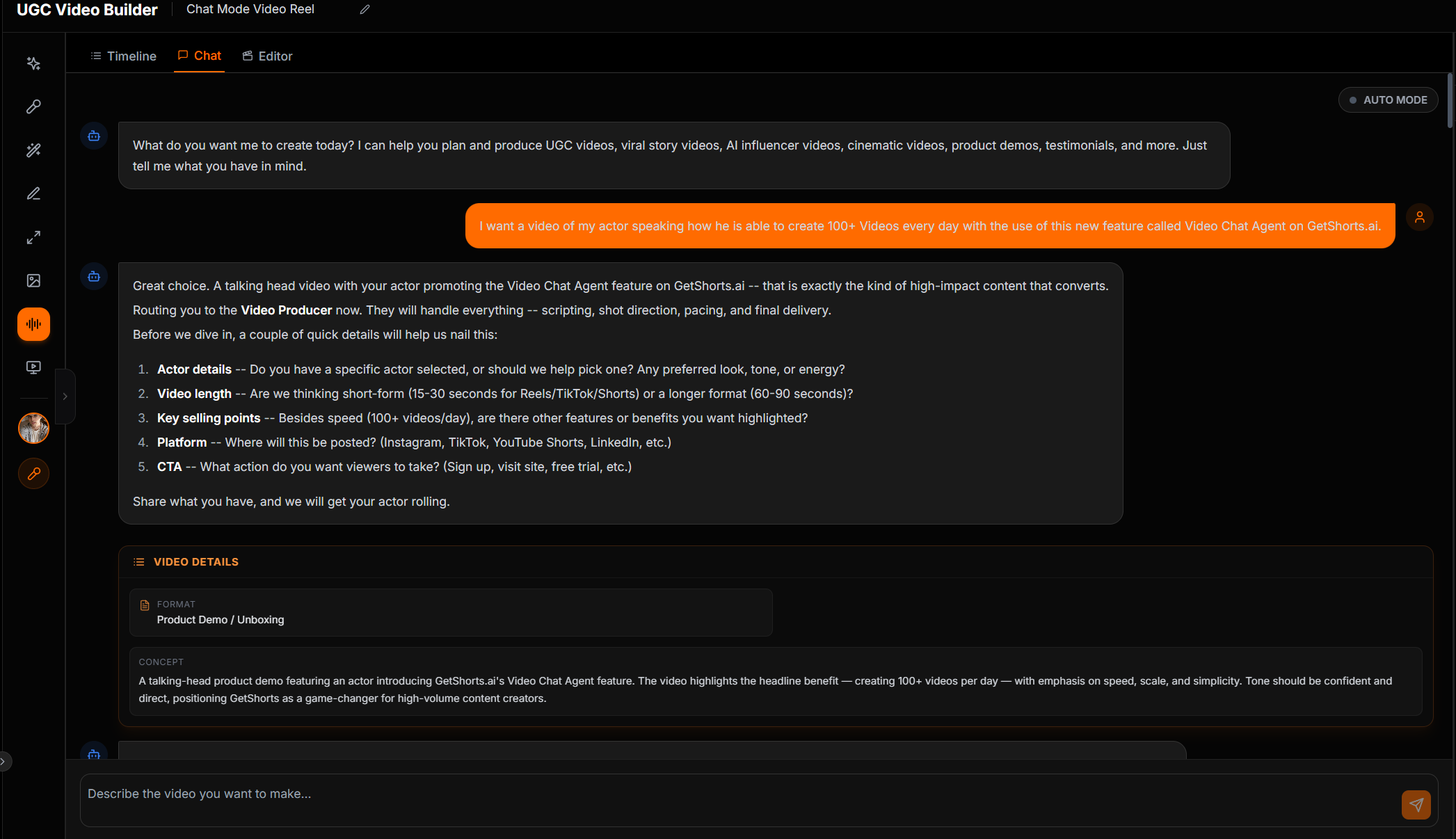
The traditional video creation process starts with a blank page. With UGC Easy Mode, it starts with a simple conversation. To create our 30-second product demo, we didn't write a script. Instead, we gave the Video Chat Agent a high-level concept.
Our input was straightforward: We wanted a talking-head product demo featuring an actor introducing GetShorts.ai's Video Chat Agent. The hook needed to focus on eliminating creative decision fatigue. We wanted to highlight the headline benefit of producing 100+ videos per day, emphasizing speed, scale, and simplicity. Finally, the tone needed to be confident and direct, ending with a call to action to visit the website.
Step 2: The Agent Writes the Script and Plans the Scenes#
Once it receives the concept, the Video Chat Agent takes over as your automated creative director. For this video, the agent instantly generated a 7-scene script designed specifically for short-form retention. It didn't just write the dialogue; it planned the visual hooks and camera physics for each individual shot.
For example, to grab attention immediately in Scene 1, the agent designed a pattern-interrupt hook: our actor, Alex, jogging on a tree-lined park path, slightly out of breath, delivering his line into a handheld iPhone selfie-cam. The agent specified the lighting (morning golden sunlight), the physics (sweat droplets, bouncing shirt fabric), and the exact camera shake to make it feel 100% authentic.
Step 3: Dynamic Environment Changes#
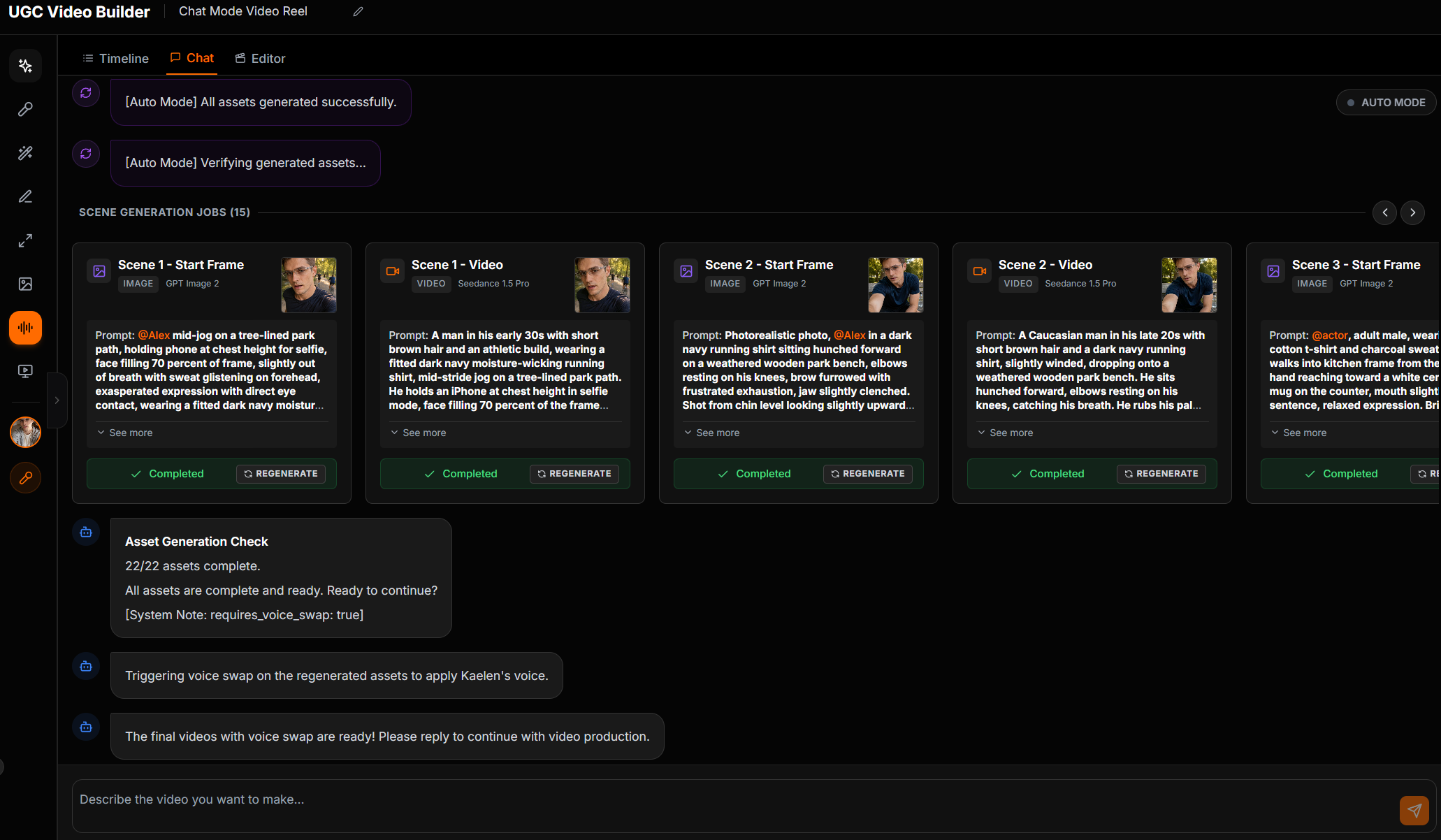
Retention on TikTok and Reels requires visual variety. You can't just have someone staring at a camera in the same room for 30 seconds. The Video Chat Agent knows this, so it automatically programmed dynamic environment changes into our video.
After the park path in Scene 1, it moved Alex to a park bench in Scene 2 for a confessional, frustrated tone. By Scene 3, he was walking into a kitchen, pouring a cup of coffee mid-sentence. In Scene 5, the agent cut to an intense, close-up shot of him in the driver's seat of a parked car. Finally, it brought him to a cozy living room couch for Scene 6, before closing the video outdoors at golden hour for the final CTA.
All of these locations, lighting setups, and camera angles were planned and executed automatically. If you were filming this yourself, it would take three days of location scouting and shooting. With Auto Mode, it happens seamlessly in the background.
Step 4: AI Voice Swapping and Rendering#
With the visual blueprint complete, the agent assigns the audio. For this tutorial video, the agent applied a custom voice profile (named Kaelen) to perfectly match the confident, urgent tone of the script. The platform's built-in voice cloning and synthesis engine ensures the lip-sync is flawless and the emotion lands exactly as intended.
Finally, the video is sent to the high-fidelity rendering pipeline (using the Seedance 1.5 Pro model). Within minutes, the separate scenes are generated, the voice audio is perfectly synced, and the final 30-second masterpiece is compiled.
Step 5: Review, Export, and Automate#
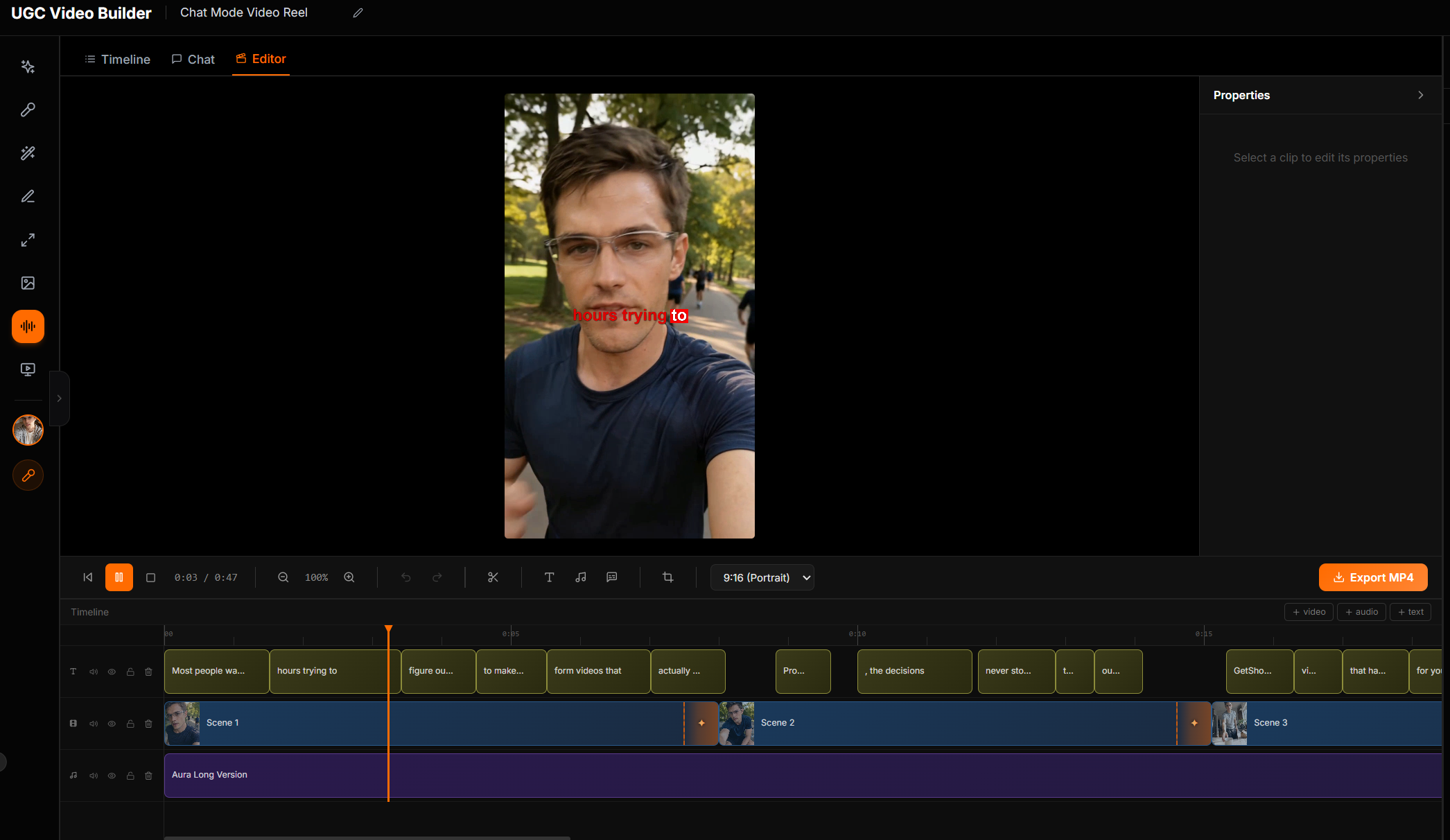
When the Video Chat Agent is finished, your video is ready in the editor. You have a completely human-sounding, visually dynamic product demo that effectively communicates your value proposition. You can download the video directly, or push it into your automated video posting queue to be published on your schedule.
I used to spend three days on one video. Now, thanks to Auto Mode, it takes less than ten minutes. If you want to start producing 100+ finished videos per day without burning out, you need to experience the Video Chat Agent for yourself.
Stop Booking Overpriced Creators. Start Scaling UGC Ads.
Produce high-quality AI avatars, auto-captions, B-roll composites and translate scripts instantly. Generate 10+ hook variants for testing.
No credit card required • Start free trial instantly