How to Swap Video Audio With an AI Voice Changer
Table of Contents
Nothing ruins a high-potential short-form video faster than flawed audio. Whether you recorded a product demonstration with distracting air conditioning hum, mispronounced a crucial brand name, or simply dislike the sound of your own voice on camera, reshooting the entire clip from scratch wastes hours of productive time. Discovering how to swap video audio with an intelligent AI voice changer lets you salvage flawless visual takes while replacing the vocal track with studio-grade sound in minutes.
Modern neural voice models do far more than slap a generic robotic filter over your footage. Using dedicated tools like the GetShorts AI voice changer, you can separate speech from background ambience, generate completely new dialogue with pristine acoustic fidelity, and synchronize the new speech precisely with your on-screen timing.
Common Scenarios Where Swapping Video Audio Is Essential#
Creators and performance marketing teams encounter audio friction almost daily. Here are the most common situations where replacing your vocal track makes commercial sense:
1. Poor Acoustic Environments: Filming on location, on busy trade show floors, or in echoey offices creates harsh room reflections and muffled dialogue that audience members refuse to tolerate.
2. Post-Production Script Adjustments: After filming an ad, your marketing team discovers that a discount code changed or a legal disclaimer was omitted. Rather than booking talent and camera crew again, you can swap audio segments seamlessly.
3. Content Localization: Taking an existing high-performing English TikTok ad and translating it into Spanish, French, or German opens up global markets. Swapping the audio while preserving the visual rhythm is the quickest route to worldwide scale.
Ready to generate scroll-stopping video ads?
Access organic AI UGC avatars and text-to-speech in minutes.
Try GetShorts Audio Swapper Free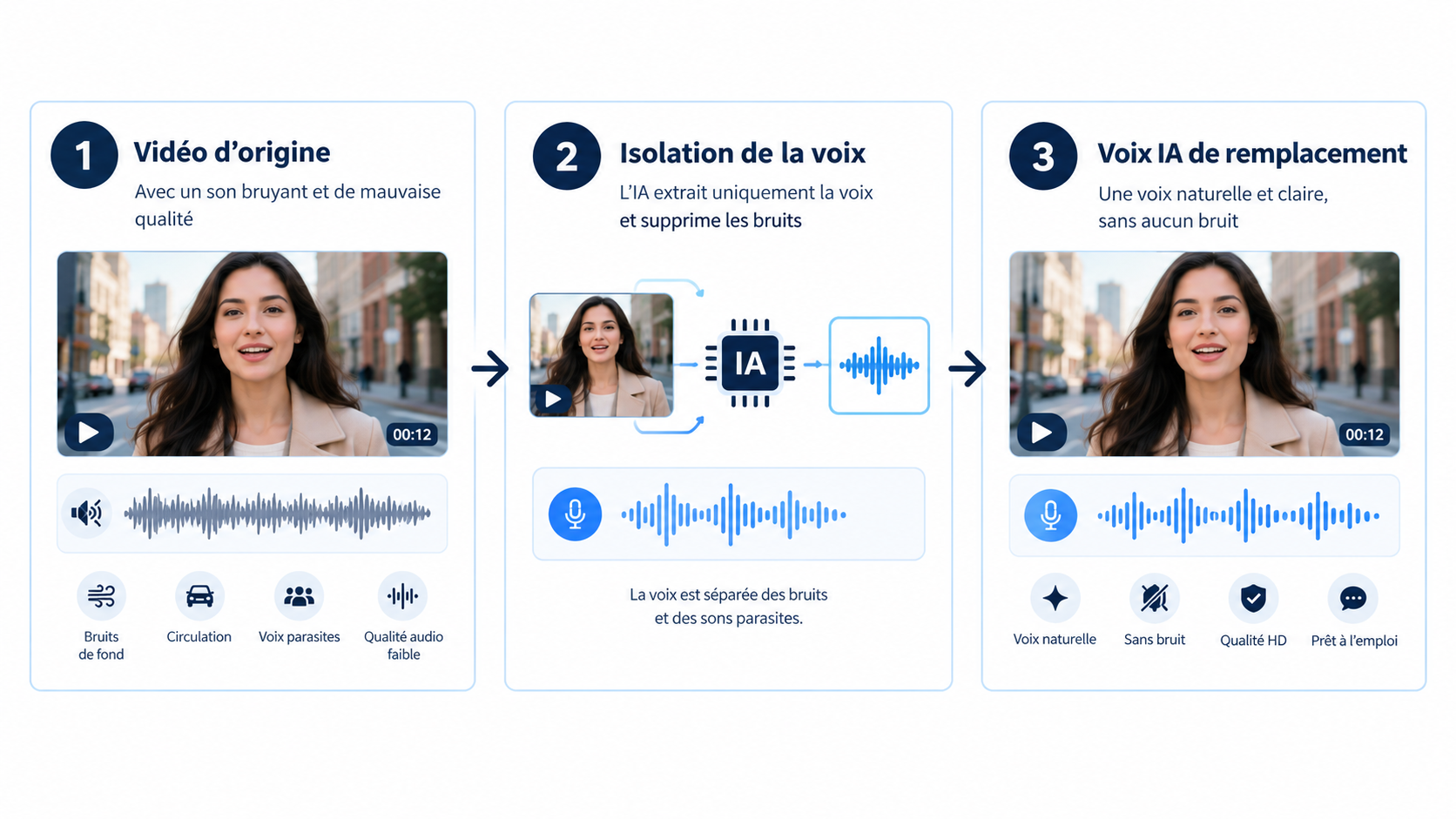
Step 1: Upload Your Video — How to Swap Video Audio Without Re-Rendering Footage#
Begin by logging into GetShorts and navigating to the Voice Cloner and Audio Studio workspace. Upload your source MP4 or MOV file directly into the editor interface.
When analyzing how to swap video audio effectively, isolating track elements is crucial. The GetShorts audio pipeline automatically splits your video container into dual channels: the video stream and the audio stem. It then runs automated speech-to-text recognition to generate a timestamped transcript of every sentence spoken in the clip.
This synchronized transcript gives you word-level timestamps, allowing you to choose whether to replace the entire audio track from start to finish or merely punch in replacements for specific sentences.
Step 2: Select Your Target Voice Persona or Clone Your Voice#
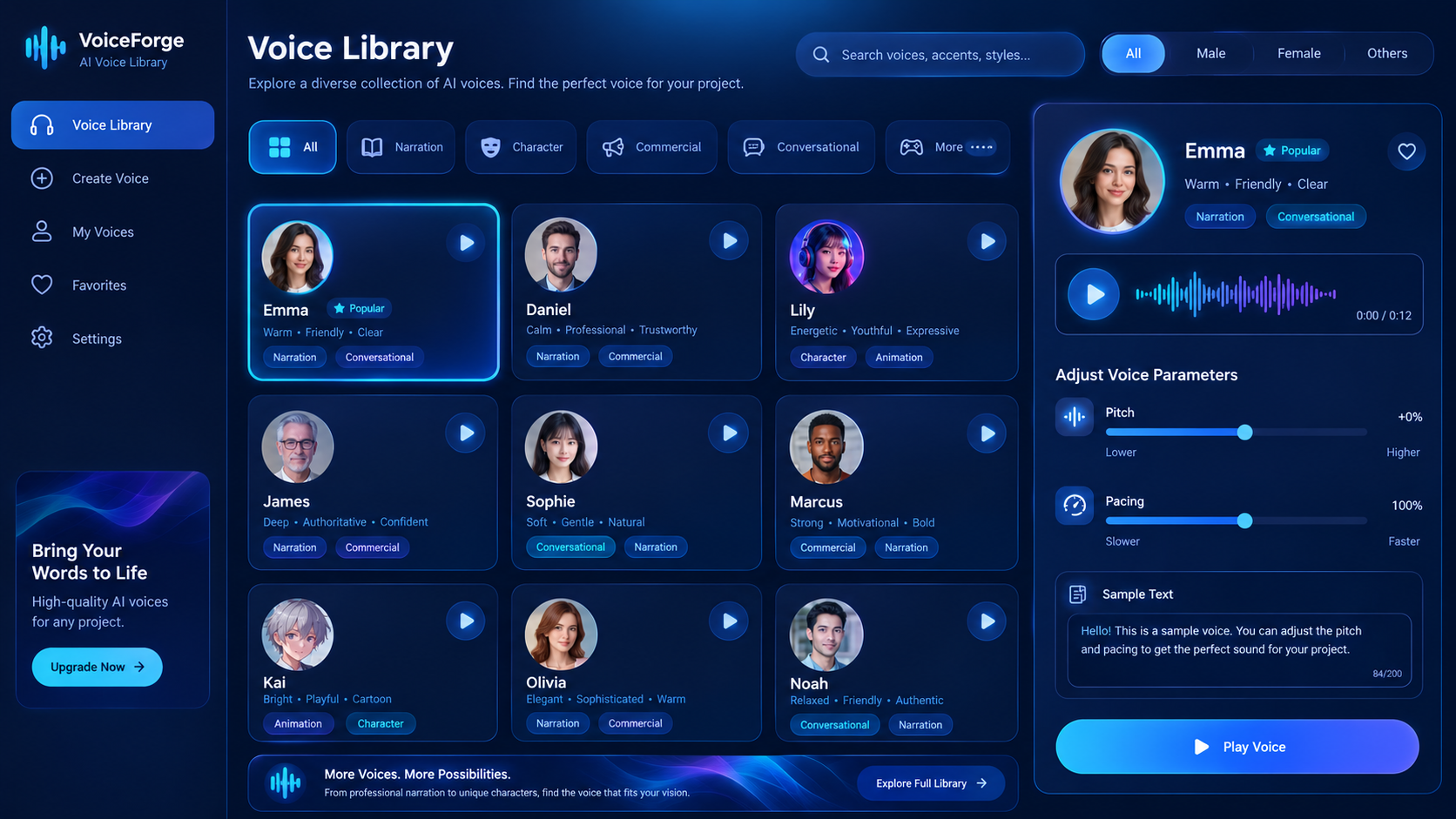
Next, determine what voice persona will replace the original audio track. GetShorts provides a diverse library of over 20+ premium studio voices engineered specifically for social media engagement, with accents ranging from American energetic to British authoritative and French conversational.
If you want to maintain your personal brand identity without speaking every take, you can clone your own voice. By uploading a 60-second clean audio sample, GetShorts creates an acoustic twin of your vocal profile. For step-by-step guidance on creating a vocal replica, check our detailed tutorial on how to clone your voice with AI in under 5 minutes, or review our in-depth breakdown of the AI voice cloning tool capabilities.
For creators on a budget or those testing simple voiceovers, you can also leverage our standalone free text to speech tool powered by the Kokoro engine, which grants free generations every 24 hours.
Step 3: Modify the Script and Synthesize the New Voice Track#
Once your desired voice is selected, inspect the generated transcript in the timeline editor. Here you can correct grammar, insert updated promotional offers, or completely rewrite the script to transform a casual vlog into a high-converting direct-response commercial.
Pay attention to pacing and syllable counts. If the original speaker took four seconds to say a phrase, keep your rewritten sentence similar in length so the vocal rhythm matches the on-screen cuts. GetShorts lets you adjust pitch, speed, and sentence pause duration directly from the properties inspector. For insider pacing secrets, review our guide on AI voiceovers for Shorts and Reels.
Click 'Synthesize Voice'. The neural engine renders the new speech in lossless audio quality and positions it along the timeline matching the video's original markers.
Step 4: Balance Background Audio, Ambient Effects, and Export#
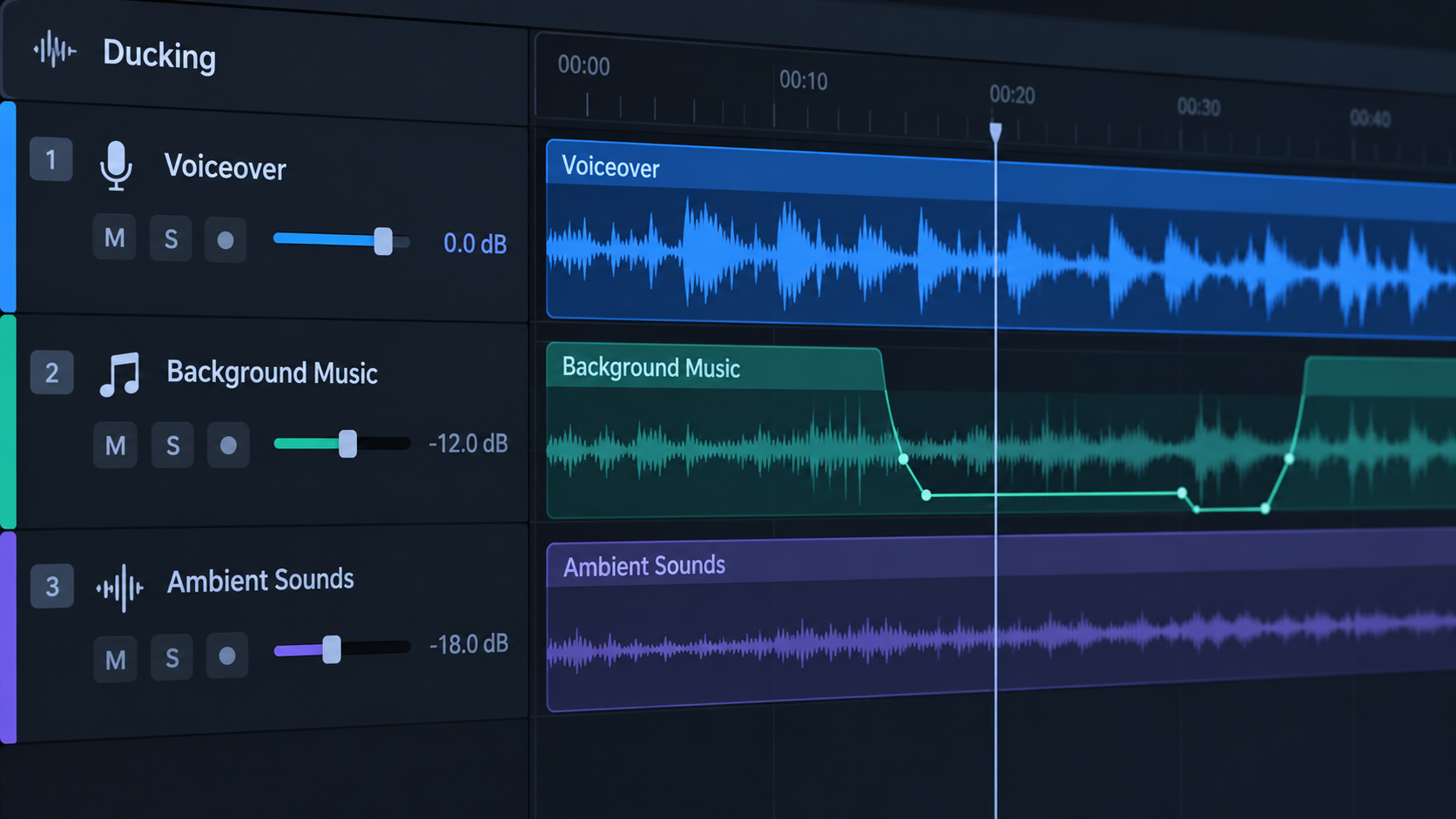
A common mistake novice creators make when replacing video voiceover is leaving dead silence beneath the vocals. Natural videos always feature subtle room tone, environmental foley, or background music.
GetShorts includes a royalty-free background music library with automatic audio ducking. When the AI voice speaks, the background track automatically drops by -14dB, raising back up during natural conversational pauses. This creates an immersive, broadcast-quality audio mix that keeps viewers hooked.
Preview the composite video with synced audio. If you have auto-captions enabled, GetShorts automatically regenerates the kinetic subtitles to reflect your newly written script. Once satisfied, hit 'Export' to download the 1080x1920 high-definition vertical video, ready for instant publication on TikTok, Reels, or Shorts.
Elevate Your Production Workflow With Full AI Video Creation#
Swapping audio on existing footage is an indispensable trick for fixing mistakes and localizing videos, but you can automate the visual side of production as well. With GetShorts, you do not even need to film yourself in the first place.
Explore our AI UGC generator to combine lifelike digital spokespersons with your custom voice clones, producing complete marketing commercials from a simple text prompt or product link. Compare our affordable pricing plans to unlock unlimited high-resolution exports and professional voice cloning tools today.
Stop Booking Overpriced Creators. Start Scaling UGC Ads.
Produce high-quality AI avatars, auto-captions, B-roll composites and translate scripts instantly. Generate 10+ hook variants for testing.
No credit card required • Start free trial instantly