How to Create UGC Video Ads Using AI Chat Mode: A Step-by-Step Guide
Table of Contents
User-generated content (UGC) is the lifeblood of modern social media advertising. If you run a TikTok, Instagram, or Facebook ad campaign, you know that authentic, casual videos recorded by everyday creators convert far better than polished, corporate advertisements. But sourcing UGC creators is slow and expensive. You have to send product samples, negotiate contracts, write scripts, and wait weeks for draft submissions that might not even fit your brand's voice.
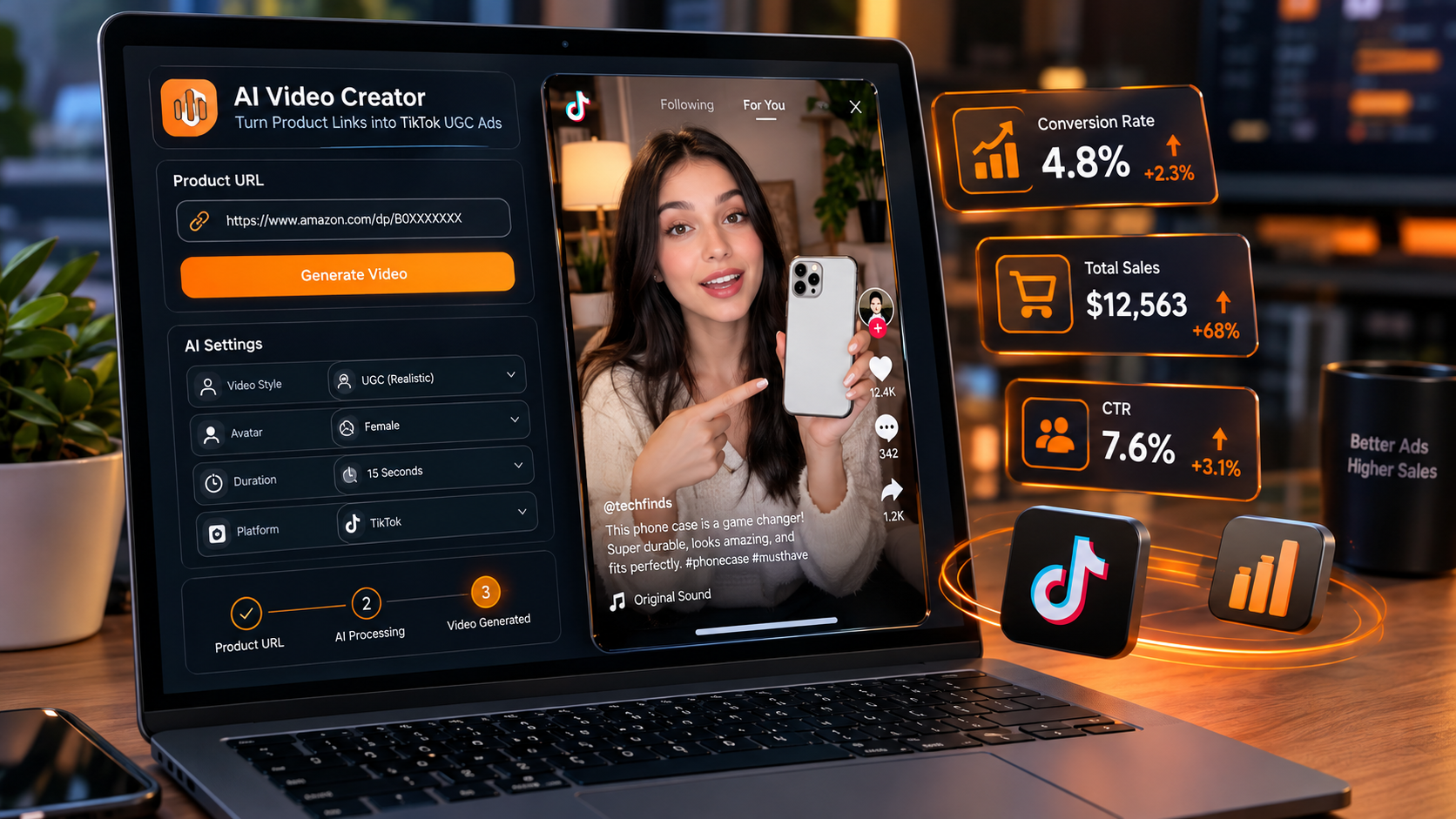
With the rise of generative AI, this process has been completely revolutionized. You no longer need to hire creators or learn complex editing software. In this guide, we will show you how to create ugc video ads using AI chat mode on GetShorts. By chatting with an AI assistant in real-time, you can collaborate on scripts, select digital actors, and generate ready-to-use marketing creatives in minutes.
What is UGC Chat Mode on GetShorts?#
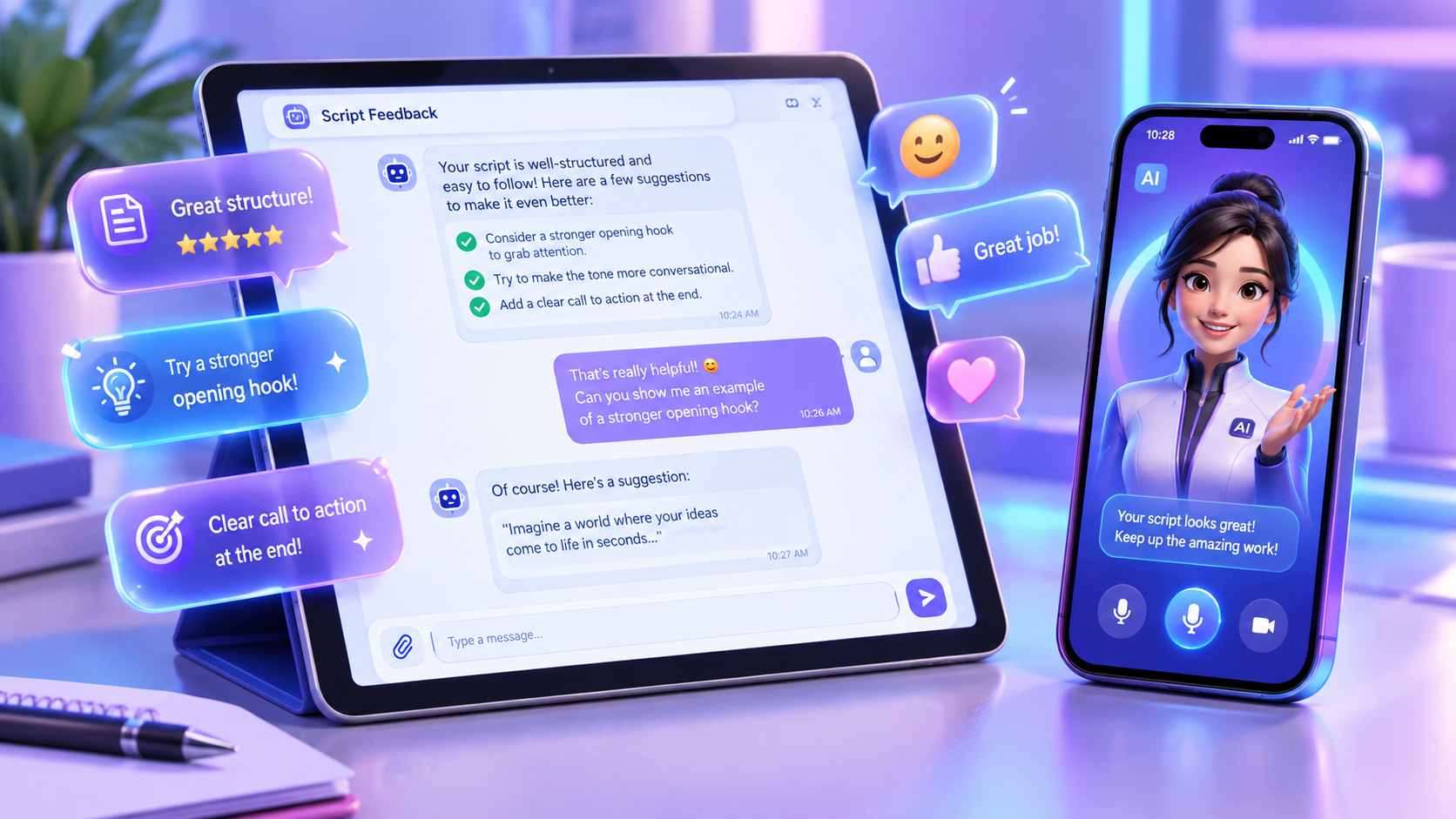
Our AI UGC generator features a specialized tool called UGC Chat Mode. Instead of staring at a blank script editor or struggling with a complex timeline, Chat Mode allows you to build a video through a natural text conversation. You talk to an AI assistant that behaves like an experienced video copywriter and creative director.
You simply tell the assistant what product you want to sell, who your target audience is, and what kind of offer you are running. The assistant then brainstorms angles, structures a persuasive script (incorporating hooks, pain points, and calls to action), and automatically sets up the B-roll prompts and avatar scenes for you.
Why Use Chat Mode Over Traditional Script Editors?#
Traditional script-to-video editors are great if you already have a final, polished script. But most e-commerce founders and digital marketers are not professional scriptwriters. Here is why creators prefer chatting:
- No Copywriting Experience Needed: The AI knows how to write hooks that prevent users from scrolling away. It will suggest multiple different hook variations based on your target demographic.
- Interactive Editing: If you do not like a sentence, you don't have to manually delete it and rewrite it. You can simply chat back: "Make the hook sound more exciting and call out fitness enthusiasts specifically." The AI updates the entire layout instantly.
- Visual Direction: The chat assistant doesn't just write text; it recommends matching visual cues, deciding when the AI avatar should be on screen and when the video should transition to custom B-roll scenes.
How to Create UGC Video Ads Using AI Chat: Step-by-Step#
Follow these steps to go from a simple product concept to a finished vertical video ad using UGC Chat Mode:
Launch UGC Chat Mode
Log into your dashboard and click on 'Create Video' on the left menu. Select the UGC option and then click on UGC Chat Mode. You will be greeted by the AI chat assistant, ready to build your video.
Brief the AI Assistant on Your Product
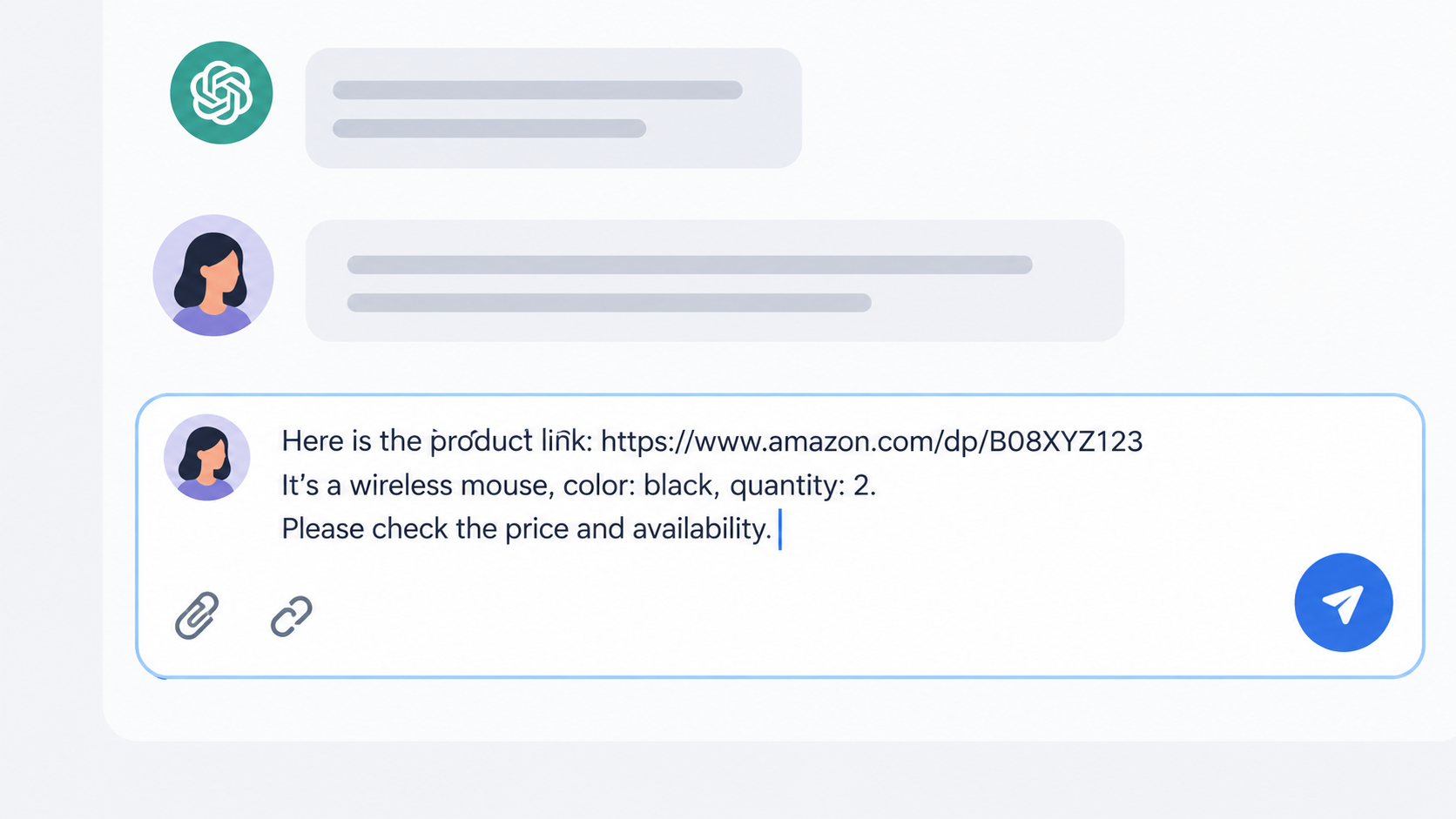
Provide the assistant with some basic details about your campaign. You can paste a link to your shopify product page, or type a simple description like: "I want to make a video ad for a premium posture corrector. The main benefit is fast back pain relief for office workers, and we have a 20% off discount code: COMFORT20."
Collaborate and Refine Your Script
The assistant will analyze your product and output a full video script outline. It will divide the script into visual scenes, highlighting hooks, product features, and call-to-actions. Review the suggestion. If you want any adjustments, tell the AI in the chat box (e.g., "Add a scene showing a close-up of the fabric" or "Make the tone more casual"). The AI will revise it in real-time.
Select an AI Avatar and Clone a Voice
Once the script is finalized, the chat assistant will ask you to select a digital creator avatar and narration voice. Choose from our studio library of lifelike avatars. To make your ad sound even more authentic, you can use our voice cloner tool to clone your own voice or select a cloned voice that perfectly matches your avatar's persona.
Generate and Open in the Timeline Editor
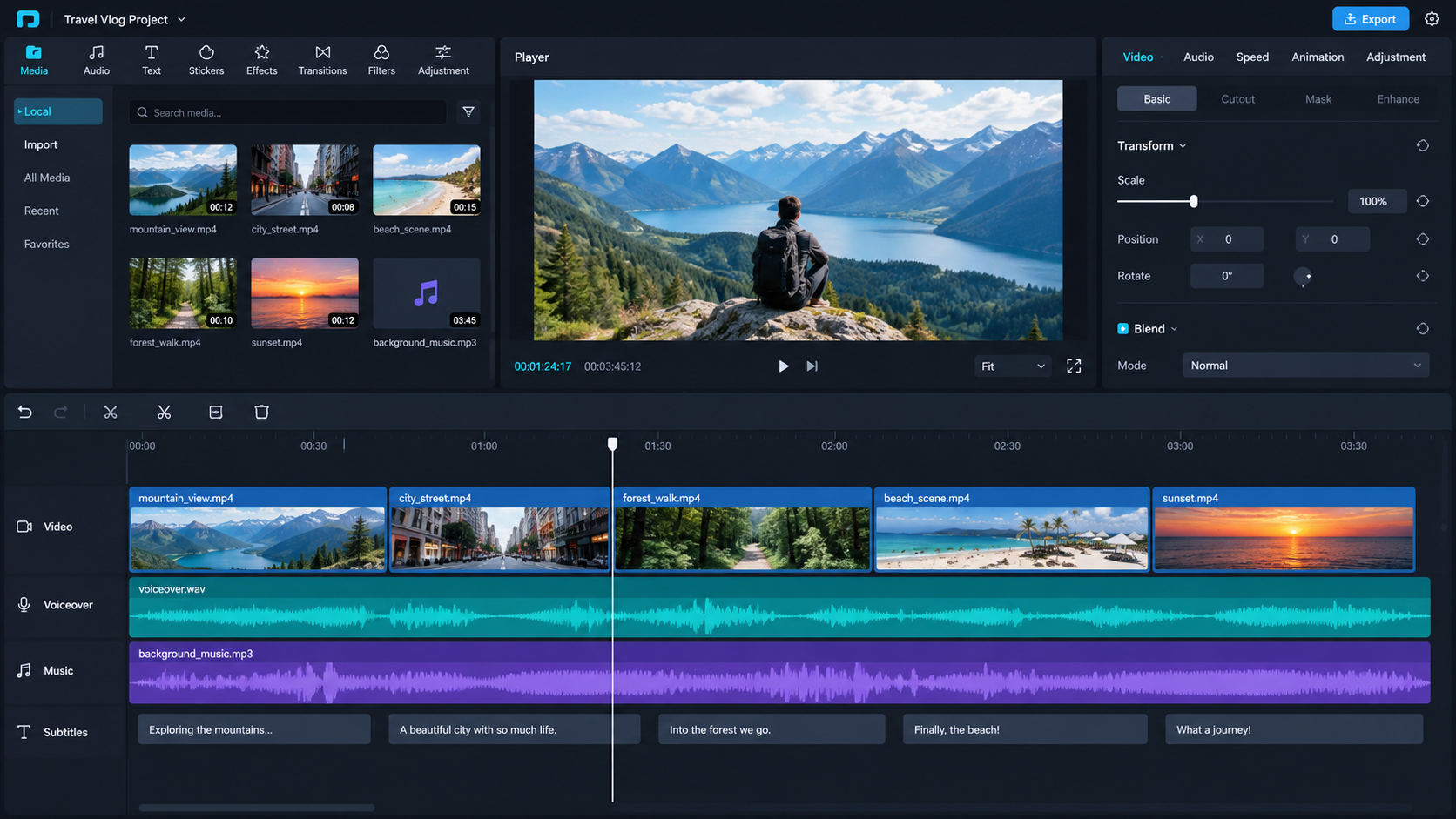
Click the 'Generate Video' button in the chat interface. GetShorts will sync the avatar's lip-movements, generate the matching B-roll scenes, overlay captions, and compile the final horizontal or vertical video ad. Once the generation is complete, you can download it directly, or open it in our UGC Video Editor timeline to add custom music or make final edits.
Pro-Tips for Better Chat-Generated UGC Ads#
To maximize the conversion rate of your generated video ads, keep these expert tips in mind when collaborating with the AI chat assistant:
Focus on a Single Pain Point: Don't try to highlight ten different benefits in a 30-second video. Tell the AI assistant to focus on the single most painful problem your audience faces and explain how your product solves it.
Request Multiple Hook Variations: The first three seconds of a vertical video dictate whether viewers stay or scroll away. Ask the AI to write three different hook styles (e.g., a visual call-out, a controversial question, and a direct problem statement) so you can test them in separate ad sets.
Leverage Dynamic B-Roll: Tell the AI to insert B-roll scenes during feature explanations. Having constant visual transitions every 2-3 seconds helps maintain viewer attention and boosts average watch time.
Stop Booking Overpriced Creators. Start Scaling UGC Ads.
Produce high-quality AI avatars, auto-captions, B-roll composites and translate scripts instantly. Generate 10+ hook variants for testing.
No credit card required • Start free trial instantly