How to Turn Any Product URL Into a Video Ad Automatically
Table of Contents
E-commerce success relies heavily on creative testing. To find a winning ad campaign, you need to test multiple visual hooks, script variants, and formats. However, manually creating ads for every product in your catalog is incredibly time-consuming. In 2026, smart store owners are solving this bottleneck by learning how to turn url into video ad assets automatically.
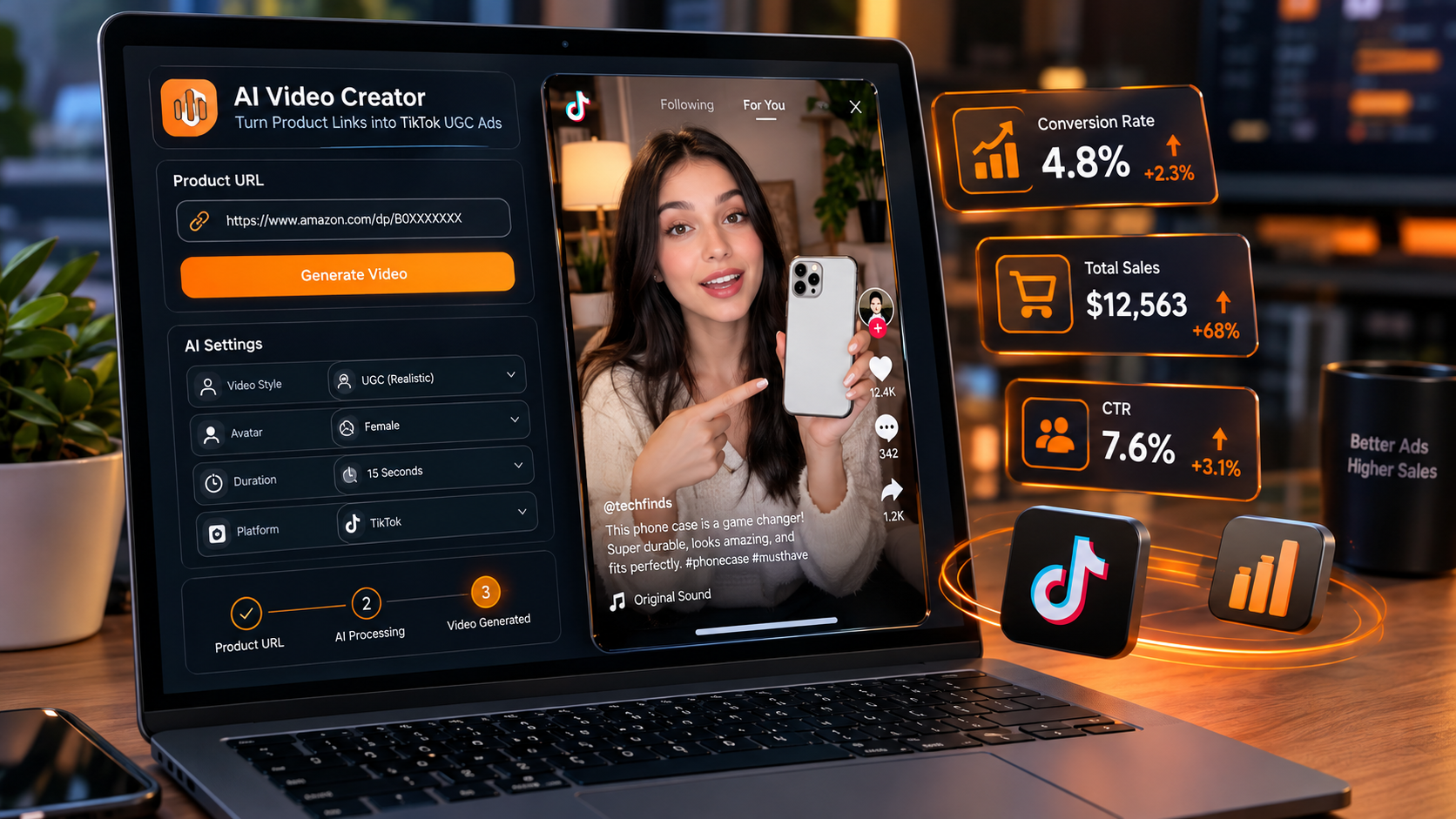
By utilizing AI-native video generators, you can extract product details directly from your Shopify or WooCommerce store, write direct-response copy, select a digital twin, and render a finished ad in minutes. In this step-by-step tutorial, we’ll show you how to use GetShorts Auto Mode to convert any product link into a high-converting advertisement on autopilot.
Why URL-to-Video Automation is a Game-Changer#
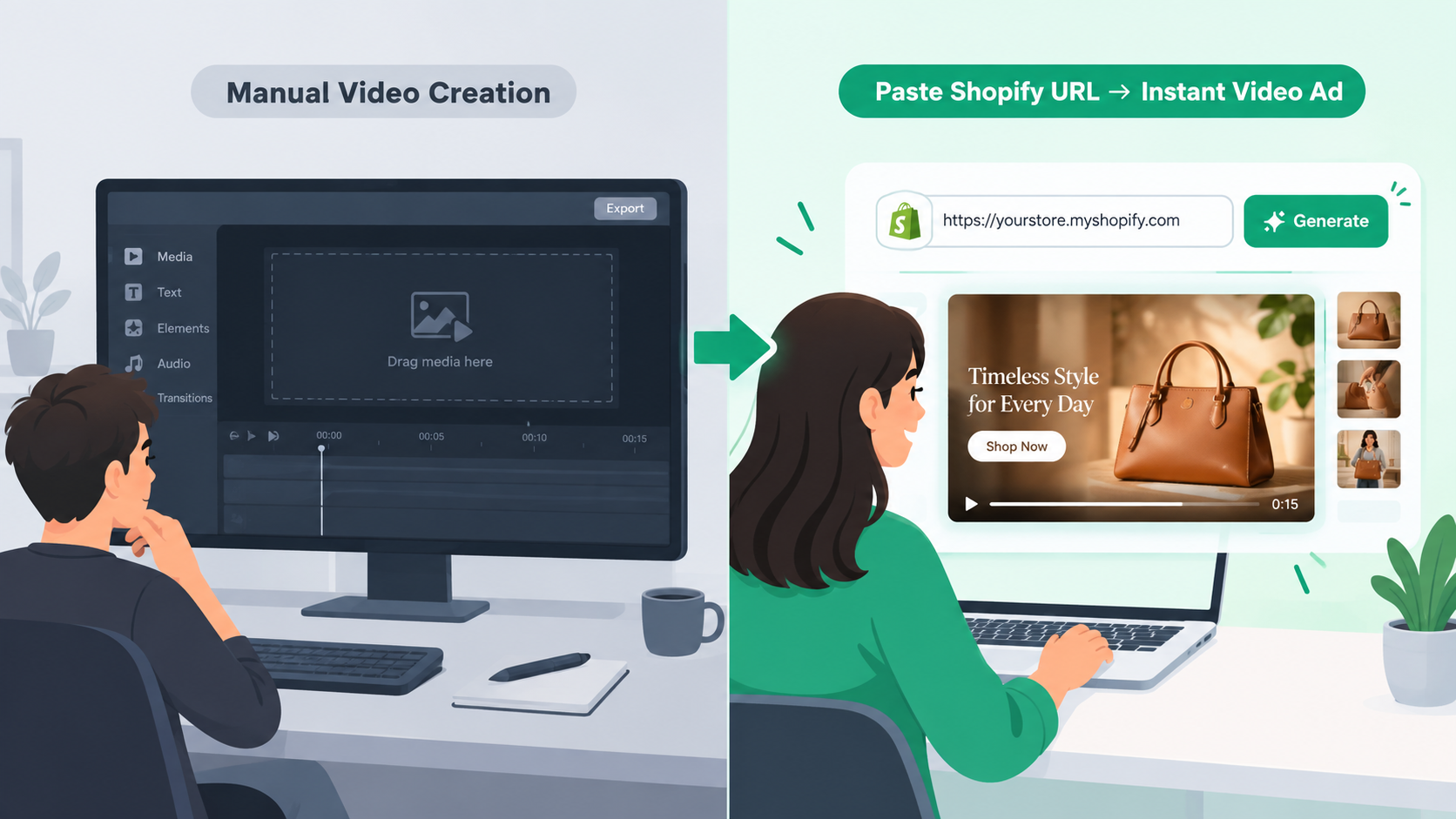
Traditionally, building a product video ad required downloading product photos, writing a script, booking a voice actor, and editing everything together in a timeline. This manual workflow meant that testing a single product ad could take days and cost hundreds of dollars.
With GetShorts Auto Mode, the AI acts as your designer, copywriter, and editor. It scans your product page, identifies the key selling points, drafts a script using conversion frameworks like PAS, and pairs it with a realistic presenter. This allows you to generate dozens of hook variations for testing in a single afternoon, maximizing your ad budget's return on investment.
Step-by-Step: Converting a Link to an Ad#
Follow these five simple steps to turn your product pages into direct-response social media video ads using the GetShorts dashboard:
Copy and Paste Your Product URL
Configure Campaign Settings & Target Audience
Review and Edit the AI-Generated Script
Ready to generate scroll-stopping video ads?
Access organic AI UGC avatars and text-to-speech in minutes.
Start Creating Free AdsChoose a Realistic AI Avatar & Voiceover
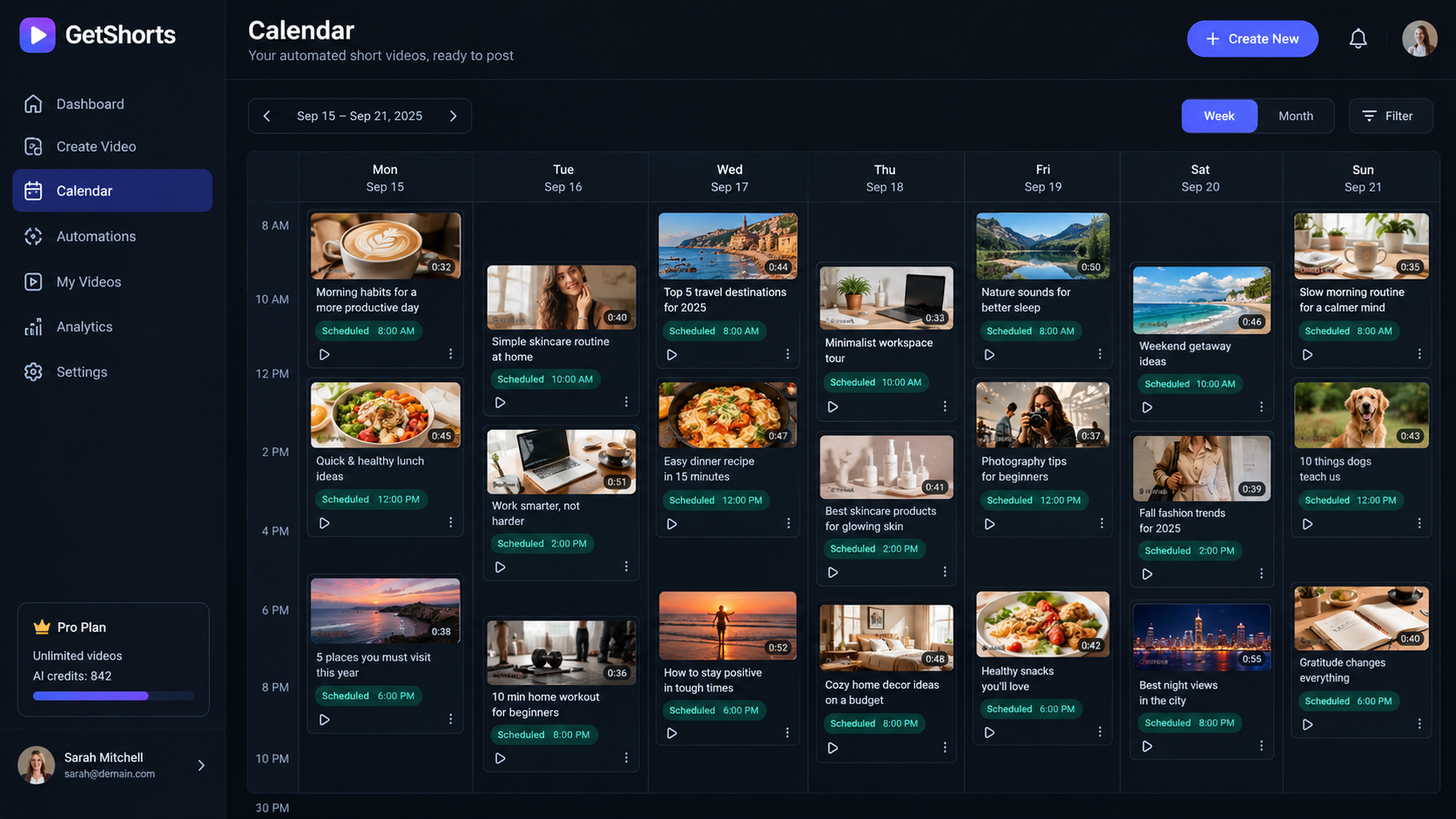
Render and Schedule for Social Media
Best Practices for URL-to-Video Ads#
To maximize conversion rates on your automated ads, keep these best practices in mind:
- Test Multiple Hooks: Use our AI UGC generator to create 3-5 variants of the same ad, swapping only the first 3 seconds (the hook). Test them against each other in your ad campaigns to identify the top performer.
- Include High-Quality Images: Make sure your product landing page has clean, high-resolution photos on white backgrounds. The AI uses these photos to generate background scenes and B-roll.
- Keep CTAs Simple: Ensure your video ends with a clear, direct call to action (e.g., 'Click the link below to get 20% off today'). Remove friction by linking directly to a mobile-friendly product page.
Conclusion: Start Automating Your E-Commerce Ads#
The traditional video production model is too slow and expensive to keep up with modern e-commerce testing demands. Learning to convert product links into finished video ads allows you to scale your creative output, identify high-converting angles, and grow your shop's revenue on autopilot.
Ready to automate your ad creation? Browse our competitive plans and start converting URLs into high-converting video ads on GetShorts today.
Stop Booking Overpriced Creators. Start Scaling UGC Ads.
Produce high-quality AI avatars, auto-captions, B-roll composites and translate scripts instantly. Generate 10+ hook variants for testing.
No credit card required • Start free trial instantly