How to Generate AI B-Roll and Custom Video Scenes for Ads
Table of Contents
When editing vertical video ads, the visual pacing is what keeps viewers from scrolling away. Relying on generic, overused stock footage library clips often makes your ad feel cheap and untrustworthy. On the other hand, filming custom B-roll is highly time-consuming and expensive. The solution is using an AI UGC video generator with integrated asset generation. In this guide, you will learn how to **generate AI B-roll** and custom video scenes tailored to your brand messaging. By learning to combine custom visual scenes with our AI UGC generator, you can produce highly polished vertical video ads that capture viewer attention and drive conversions.
Generating custom B-roll gives you absolute creative control over what appears on screen. Instead of settling for a stock clip that is 'close enough,' you can describe the exact scene you need—from a close-up of a product being unboxed to an abstract background representing software processing. This visual flexibility helps you maintain a cohesive style across your videos, which is crucial for brand recognition. If you want to scale your content calendar even further, check out our tutorial on how to automate UGC video creation to see how database pipelines streamline your workflow.
Why Custom AI B-Roll Outperforms Stock Footage#
Using standard stock libraries means sharing the same visuals as thousands of other advertisers. When a viewer recognizes a stock video clip, they immediately flag the content as an ad and scroll past. Custom AI scenes solve this problem by providing several distinct advantages:
- Unmatched Relevance: Every scene is rendered to match the exact sentence spoken by the narrator, making the visual transitions feel organic and meaningful.
- Style Consistency: You can define the lighting, colors, and camera angle, ensuring your B-roll matches your main avatar video perfectly.
- Zero Licensing Issues: All AI-generated assets belong to you, eliminating the risk of copyright strikes or recurring royalty fees.
Step-by-Step Guide to Generating AI B-Roll#
Follow this tutorial to plan, generate, and edit custom visual scenes into your video projects:
Write or Generate Your Video Script
Every great video starts with a strong script. Write out your voiceover narration, keeping it structured with clear section transitions. If you need help brainstorm hooks or script copy, you can collaborate with our AI assistant. Make sure to divide your script into short paragraphs, as each paragraph will represent a distinct scene in your video timeline.
Access the B-Roll & Scenes Tool
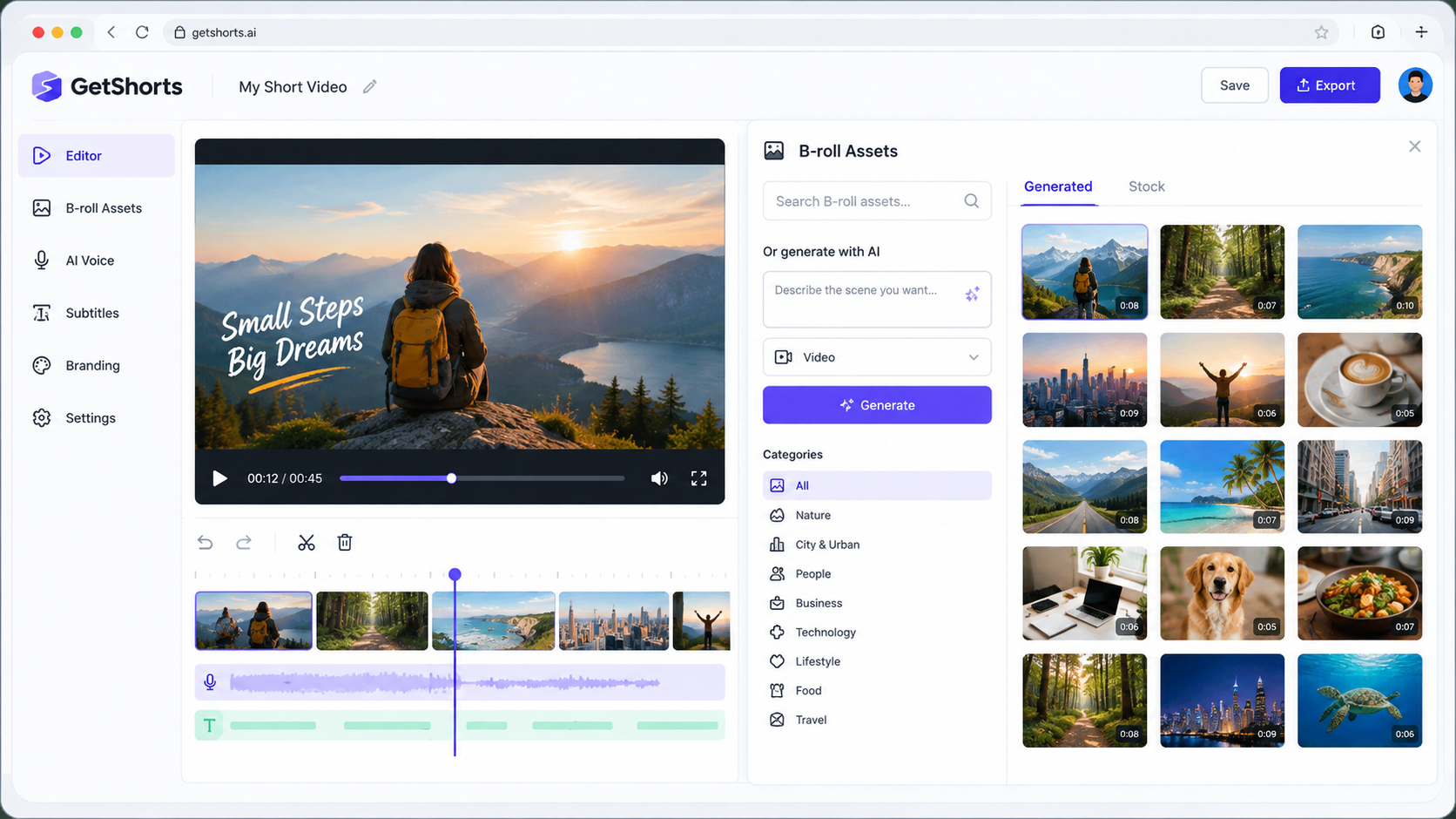
Log into your account and open the UGC video builder. Under the assets panel, select the 'Scenes' tab. This is where you can manage your media library, search stock footage, or generate fresh AI assets. To start creating, click on 'Generate AI B-Roll' to open the prompt input panel.
Write a Detailed Visual Prompt
To get the best visual results, write descriptive prompts. Instead of a simple prompt like 'man working,' expand it: 'Close-up of a designer's hands typing on a glowing mechanical keyboard in a dark studio space with neon blue accent lights. Cinematic depth of field.' This detail helps the image generator understand your stylistic preference and output high-quality assets.
Position Scenes on the Editing Timeline
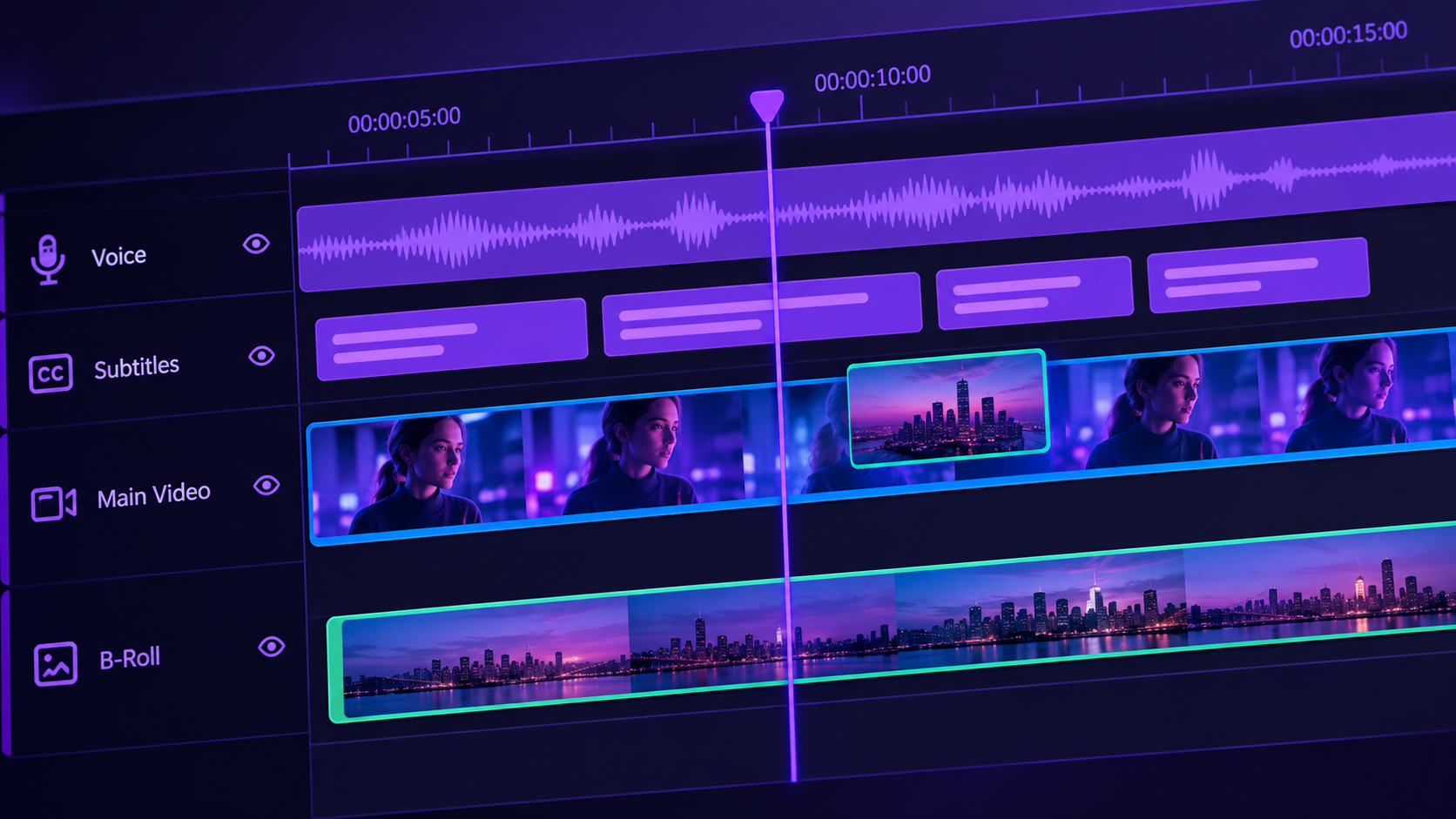
Once your B-roll clips are generated, drag and drop them onto the secondary video tracks of the timeline editor. Position them over the specific parts of the audio where the narrator discusses those concepts. Adjust the duration of the B-roll clips so the visual cuts are fast and clean—ideally changing every 3 to 4 seconds to maintain a high video retention rate.
Ready to generate scroll-stopping video ads?
Access organic AI UGC avatars and text-to-speech in minutes.
Try GetShorts FreePro Tips for Prompting AI B-Roll#
To elevate the quality of your AI-generated scenes, keep these professional writing tips in mind:
- Define the Style: Use terms like 'cinematic lighting,' 'isometric 3D render,' 'minimalist vector illustration,' or 'macro photography' to guide the aesthetic.
- Control the Color Palette: Specify your brand colors (e.g., 'warm orange accents,' 'cool blue and dark grey theme') so the generated B-roll matches your visual identity.
- Focus on Composition: Describe camera angles such as 'extreme close-up,' 'overhead flat lay,' or 'wide landscape shot' to add variety to your video cuts.
Stop Booking Overpriced Creators. Start Scaling UGC Ads.
Produce high-quality AI avatars, auto-captions, B-roll composites and translate scripts instantly. Generate 10+ hook variants for testing.
No credit card required • Start free trial instantly